How to get a client to approve posts from their phone
The posts are ready on Monday, and the client looks at them on Wednesday, on a phone, after asking twice for the password. This is how to take the password, the seat and the tool out of the way, and leave only the answer.
Rodolfo MotaFounder of SPREVA
The short version
In SPREVA you invite the client as a Reviewer. They get an email, ask for a sign-in link instead of choosing a password, give their name once, and then see the posts waiting for them, one at a time, as each network will show them. They approve a post or send it back with a note, from their phone, and see nothing else of your workspace.
Why clients do not log in
Agencies look for client approval without login, but signing in is rarely what the client minds. They mind the password they will have forgotten by next month, the tool they must learn to find one post, and the seat someone pays for. Any of the three sends them back to answering in a chat.
So the client's side has to be smaller than yours. The owner of a bakery does not need the calendar or the analytics, only the posts that wait for them, when each one goes out, and two buttons to press between two customers.
What the client receives
You invite them from Team, with their email address and Reviewer as the role. Send a short message first, so the email from SPREVA is expected:
Hi Ana, from next week you approve the café's posts before they go out. An email from SPREVA brings our invitation: open it and ask for a sign-in link, no password needed. When posts are ready, an email tells you, and you approve each one or send it back with a note.
What happens on their side:
- 1
The invitation arrives by email, saying who prepares the posts, for which company, and that nothing goes out without their answer.
- 2
On the invitation page they ask for a sign-in link, sent to the address you invited, and open it on the same phone, which signs them in and accepts the invitation.
- 3
The first time, they are asked their name: it is what appears on what they approve.
- 4
When you send posts, one email lists everything waiting, about a quarter of an hour after the last one. A post still waiting a day before its time brings one reminder.
What the client sees
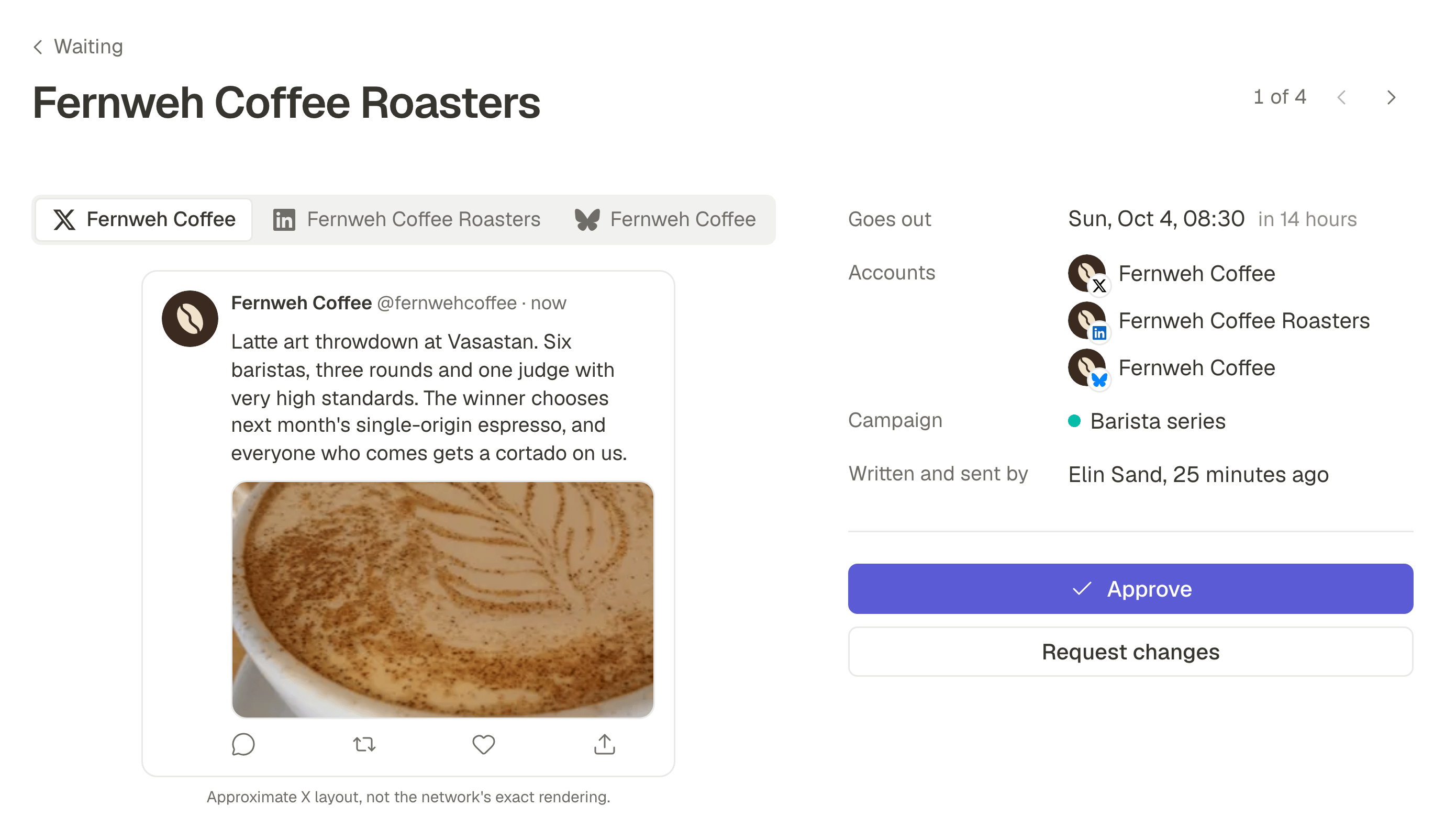
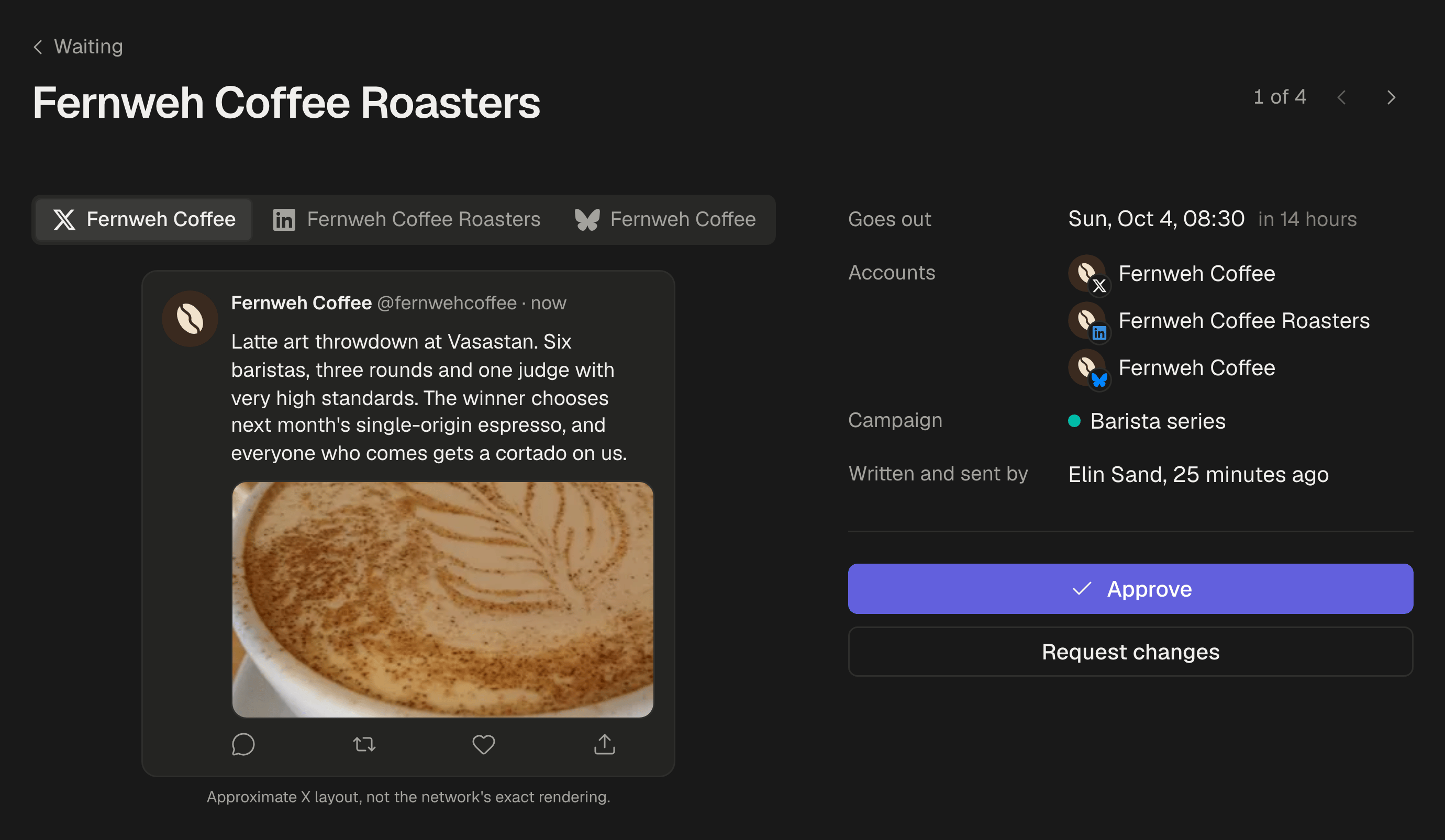
The email opens their inbox, and one button walks through the waiting posts. All of it is made for a client who will approve social media posts on a phone, standing up:
- The post as the network shows it, one account at a time, with the photo or video, then the whole caption, because a client reads every word and a preview cuts it short.
- When it goes out, the accounts it goes to and who wrote it.
- Approve. The post is scheduled at the time you already chose, and the next one opens. They can undo it if they change their mind.
- Request changes. A note is required, and the post goes back to its author as a draft with the note on it.
There is no swipe to approve: a slip of the thumb on a bus should not schedule a post on a client's account.
One inbox for every company
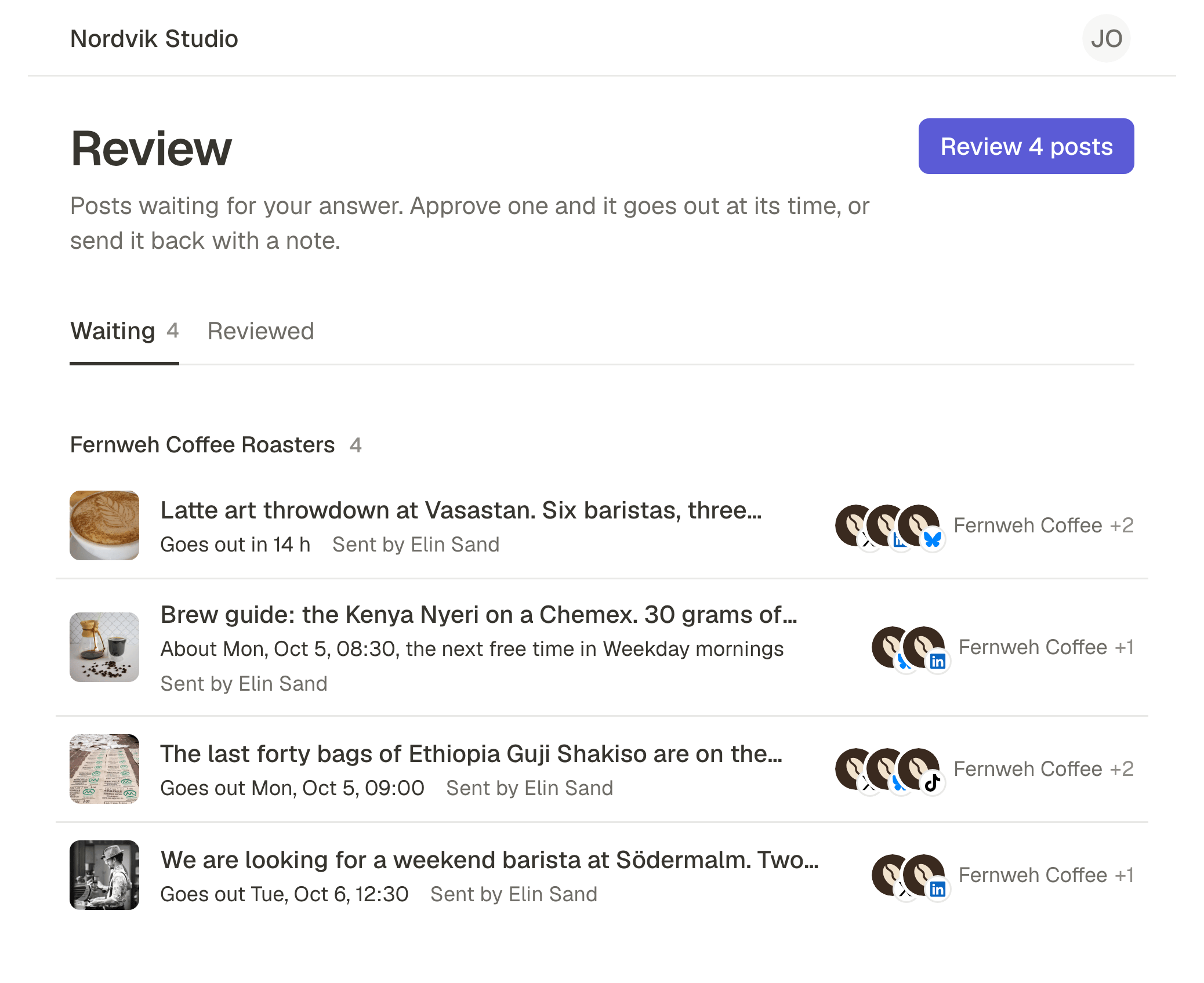
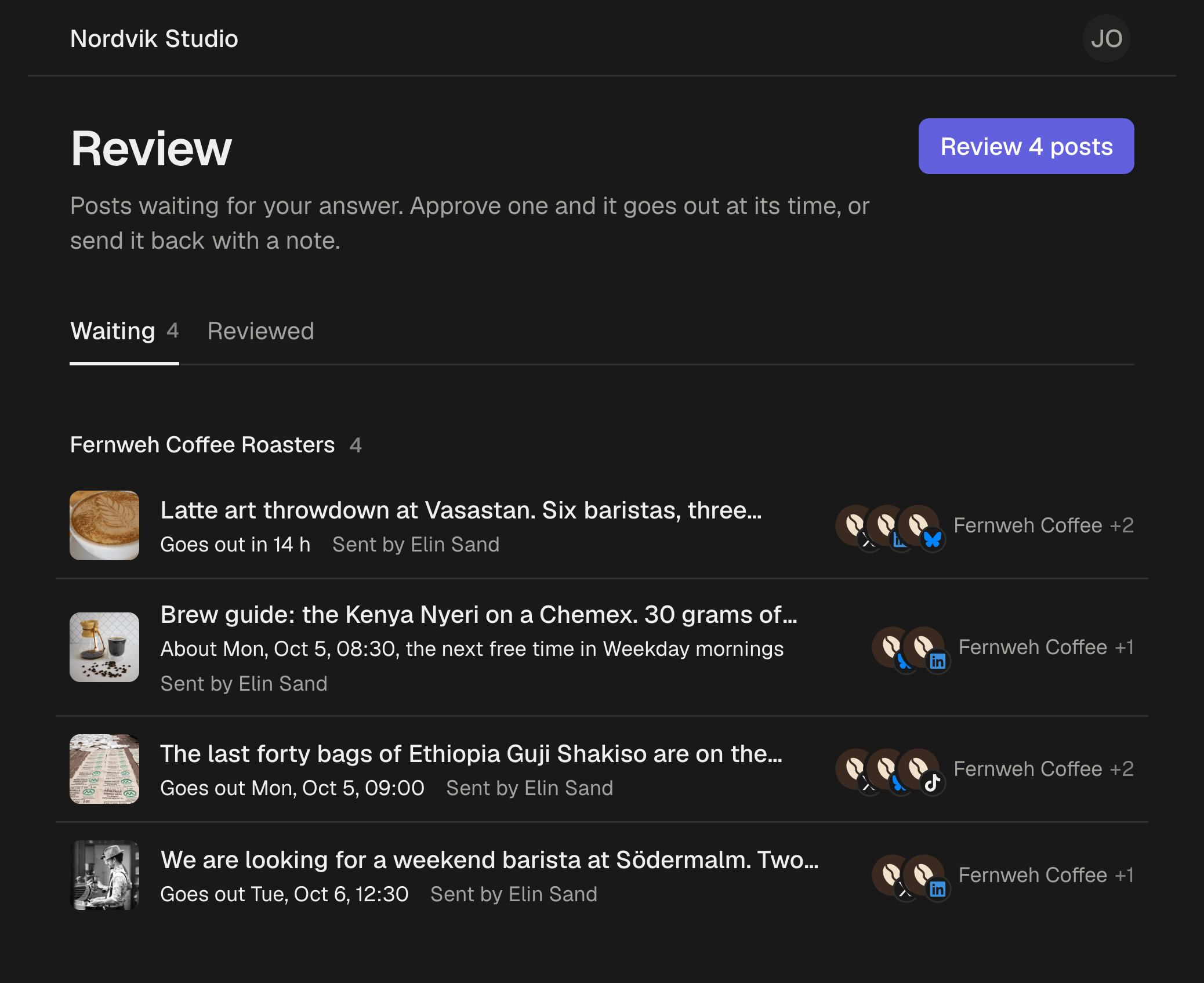
Some clients approve for more than one company: the owner of two cafés, the manager of a group with three brands. They get one inbox across all of them, grouped by company, soonest first, with what waits on one tab and what they answered on another.
From the second invitation on, there is nothing to accept: they already have an account, so they are added at once and told by email. The next email about waiting posts simply lists one more company.
Your name on it
What the client sees carries your agency's name and logo: on the invitation, in their inbox, above each post and on the approval record you send them, and your name is in the emails. To the client, the posts come from you.
Set it once in Settings, General, under Shown to reviewers, and each new client's workspace can copy it from one you already set up. The name and logo are part of Pro and Business; on Starter, the client sees the workspace's name.
Invite one client this week
Invite one client as a Reviewer and send them next week's posts. Reviewers are free on every plan, up to 25 per workspace, and take no seat; your name and logo on what they see come with Pro and Business. Every plan starts with a 7-day trial. How client approval works.
Questions
Does the client take a seat on my plan?
No. Reviewers take no seat on any plan, up to 25 per workspace. They approve posts or send them back, and see nothing else of the workspace.
Does the client need a password?
No. They ask for a sign-in link from the invitation, sent to the address you invited. A client who prefers a password can still use one.
Can the client edit the post?
No. A client who wants different words says so in the note, and the post goes back to its author as a draft to change.
What if the client does not answer in time?
A post nobody approved by its time is not sent: it becomes a draft again, and its author is told. What to agree with a client about deadlines.
Written by
Rodolfo Mota
Founder of SPREVA
Makes SPREVA in Portugal: the Studio, the tools an agent works with, and the publishing behind them.
Keep reading
- The client has not approved and the post is due: publish, hold or skip?The post goes out at nine and the client has not answered. Why holding beats publishing, how to set an approval deadline, and what to agree on first.
- The client never approved it, and it went out anywayA time moved, a caption fixed after the yes, a post scheduled in a hurry. How posts go out unapproved, and how SPREVA makes every post wait for a yes.
- “That is not what I approved”: what to show the clientA thumbs-up in a chat is weak proof when a client disputes a post. What an approval record should hold, how SPREVA keeps one, and how to use it calmly.