How to schedule LinkedIn posts, PDF carousels included
Mara writes her LinkedIn posts on Tuesday evening and wants them out on Wednesday at 8:30, when her clients are on the train. This is how to schedule them, the four kinds of post LinkedIn takes, and the small things that decide how a post looks once it is there.

Rodolfo MotaFounder of SPREVA
The short version
Connect your LinkedIn profile to SPREVA, write the post, press Schedule and pick the day and time, or add it to a queue that keeps your posting times. LinkedIn takes four kinds of post: text with an optional link, images, one video, or one PDF that people swipe through, which is what most people mean by a LinkedIn carousel. SPREVA checks LinkedIn's limits, 3000 characters among them, before anything goes out.
The four kinds of LinkedIn post
Each kind has its own rules, and SPREVA checks them as you write and again right before sending:
| Kind | What LinkedIn shows | Limits |
|---|---|---|
| Text and link | Words alone, or with a link shown as a preview card | 3000 characters |
| Images | One picture, or several in a grid | Up to 20, 8 MB each |
| Video | One video, alone in its post | 3 seconds to 30 minutes, 500 MB |
| Document | One PDF, read a page at a time, with a title | Up to 300 pages and 100 MB |
Scheduling a PDF carousel
What people call a LinkedIn carousel is a document post: a PDF that LinkedIn shows a page at a time, for people to swipe through. Make the slides wherever you like, export them as one PDF, then:
- 1
Press New in the sidebar, choose Post, then Document Post: a PDF people can swipe through.
- 2
Pick your LinkedIn profile and add the PDF.
- 3
Give the document a title, which LinkedIn shows with it. Without one, SPREVA uses the first line of your text.
- 4
Write the text that goes above it, then Schedule it or Add to queue.
Keep the words on each page large enough to read on a phone, and put the point of the whole document on its first page: it is the only one people see before they decide to swipe.
Links, and how they show
A post with a link and no picture becomes a preview card: LinkedIn fetches the page's title and image and shows them under your text. Add a picture, a video or a document, and the link stays in the text as a plain link, with no card. SPREVA warns you before you schedule when a link will go out without its card.
So choose per post. To send people to a page, let the card do the work and leave out the picture. To stop them in the feed, use the picture and put the link in the text.
Who sees it, and the details that help
Each LinkedIn post has an audience: anyone, your connections only, or anyone signed in to LinkedIn. It is anyone unless you change it, post by post, in the LinkedIn settings of the editor.
Pictures carry alt text for people who use a screen reader. SPREVA takes it from the description your library wrote for the picture when you uploaded it, and you can write your own for one post. How the library describes a picture.
Wednesday at 8:30, every week
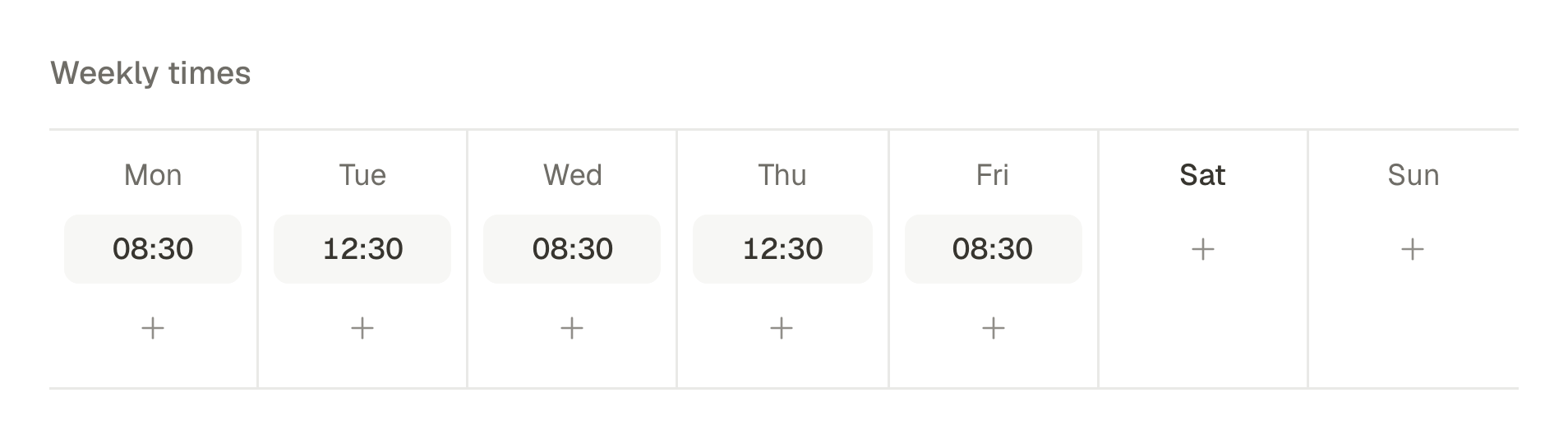
If you post on the same days each week, make a queue: Tuesday, Wednesday and Thursday at 8:30, in your time zone. Write when you have time, add each post to the queue, and each takes the next free time.
With an AI agent connected to SPREVA, the evening's writing can start from what you already have:
Turn the PDF I uploaded today into a LinkedIn document post on my profile, with a two-line intro and a title. Add it to my weekday mornings queue, and show me the text before you do.
Schedule next week's posts
Connect your LinkedIn profile, make a queue for the mornings you post, and add next week's posts to it, one PDF carousel among them. Every plan starts with a 7-day trial.
Questions
Can I schedule posts to a LinkedIn company Page?
Yes, to Pages where you are an administrator, once LinkedIn has granted SPREVA access to Pages. Your personal profile works either way.
Can SPREVA put the link in the first comment?
Not on LinkedIn. Put the link in the post itself: without a picture, it becomes a preview card.
Can I mention people or companies in a scheduled post?
Not yet. An @ in a scheduled LinkedIn post stays plain text, so mention people from LinkedIn once the post is out.
How long can a LinkedIn post be?
3000 characters. SPREVA counts as you type and flags a post over the limit before it goes out.
Written by
Rodolfo Mota
Founder of SPREVA
Makes SPREVA in Portugal: the Studio, the tools an agent works with, and the publishing behind them.
Keep reading
- How to adapt one post for Instagram, LinkedIn and XWrite one post and adapt it for Instagram, LinkedIn, X, Bluesky and Threads without rewriting it every time: a caption per network, each network's limits checked before it goes out, and scheduling on every account at once.
- A media library that knows what is in itFolders and file names stop working at about a hundred files. What SPREVA does instead: every upload described and tagged as it arrives, videos transcribed, alt text suggested, and a search that understands “the window at dusk”.
- A week of social media from one conversation with your AI agentMonday's photos become a video, Tuesday's post goes to every network in its own words, the queue fills itself and Friday brings the numbers. A week with an AI agent connected to SPREVA, prompt by prompt.